Before you start working on Oracle Document Capture(ODC), before even you start clicking on menus on ODC, do your homework first.
Homework wrt data. Data that you want to input via ODC. What documents, what metadata that goes along with those documents. What are the differentiating attributes of these documents, which will help ODC to convert the scanned images into indexed contents in UCM. Can the attributes be pulled off from the scanned image itself(OCR). Can the attributes be recognized via a multi-dimensional barcode(Barcode-Recognition). Can the attributes be searched off from another database. If nothing works, will they have to be manually entered on the indexing screen.These are the options that ODC provides, for which you need to have answers. Do your homework and put it down on a paper for review and execution.
Your use cases may vary, but working on ODC is same.
First , you need to define “File Cabinets”, a bunch of images that you want to group together in batches and associate a similar set of metadata. For eg. “Profiles” . Profiles having attributes as Associate _ID (Numeric), Associate_name (AlplaNumeric), Designation(AlplaNumeric).You can define various statuses to this batch. Scanned, Indexing-In-Process, Ready-to-Commit, etc, etc.

Next , you need to create a “Scan Profile”. A profile for the bunch of to-be-scanned documents. Keep a watch on the “Batch Prefix” that you are setting, you will have to be consistent across various tools if you are going to combine the ODC, Recognition, Import and Commit Servers for the use case. Here you have various options to play around and configure the scanned image locations(directly from scanner, already scanned images in a common-shared-drive), the Bar-Code detection setting, blank page , eroding, smoothing, etc.
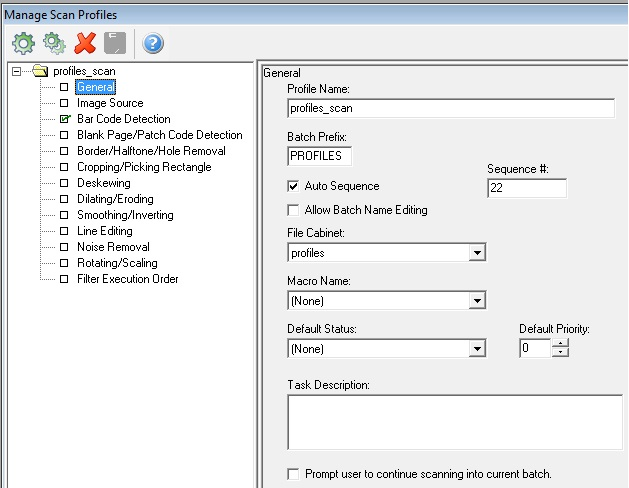
ODC supports both “Hardware Detection”, if your scanner is able to read the barcode, or “Software Detection”, leaving the reading part to ODC itself.
Run your imagination wild on this one and configure as per your needs.
Next , you need to define your “Index Profile” , which defines as part of a particular “Scan Profile” what all attributes needs to be captured.
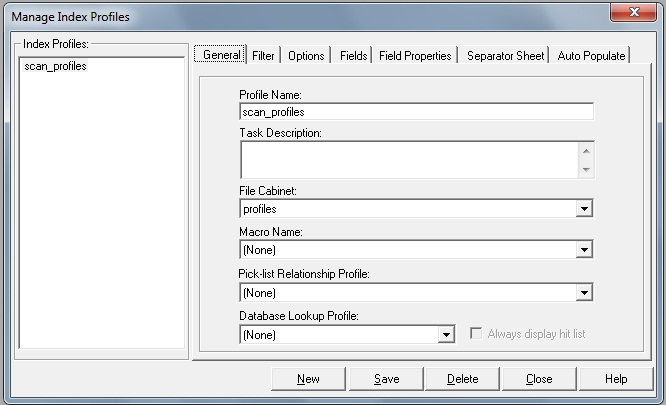
Select the fields created during the “File Cabinet” definition, as below.
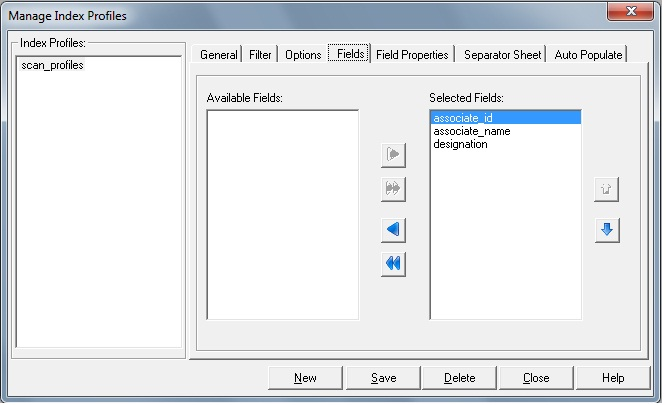
Don’t worry about other tabs for now. Save the profile.
One last thing to setup is a “Commit” profile.
Here you will define where do you want to commit the contents to? Oracle UCM 10g, 11g, Oracle IPM 11g, etc. Keep handy info like the content server url, security groups, field names in content server that you want to map it with the captured attributes in Indexing screen.
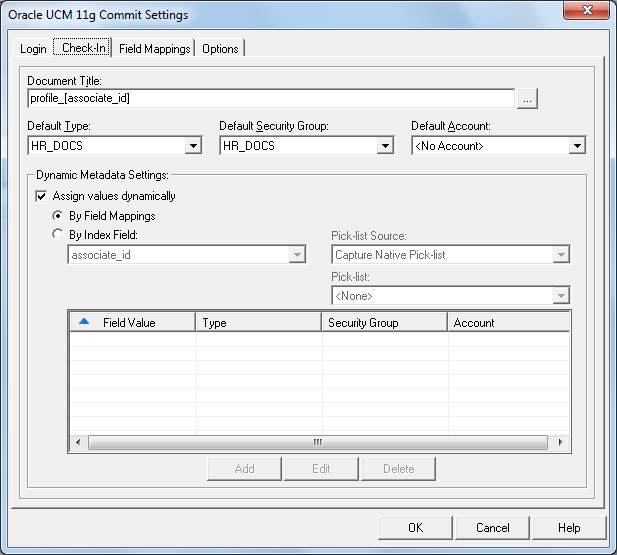
Once done, move over to the field mappings tab to identify and map the fields.
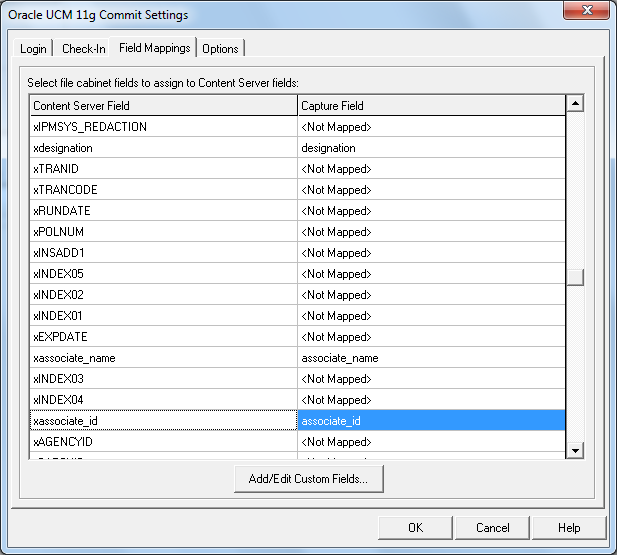
Now you are ready to input your first image to be scanned, indexed and committed to the ECM repository.
Start the scanning process by selecting Scanning > Batch Scanning > Begin Scanning.
Here you can select the images folder that you must have configured to pull as a batch, Once these images are pulled up by ODC, you can review them page by page, and rescan or enhance with various options that ODC provides.
Once scanned, you are ready for “Indexing”. Select Indexing > Batch Indexing, and select appropriate batch from the list.
Enter all values that are required on the first page as attributes/metadata. You can make use of Zonal OCR as well, if you have enabled and configured the same. But a word of caution, OCR is not an 100% full proof technology, its more of an suggestive technology, as I would like to call it. You need to verify and cleanse the values that OCR has captured, as required.
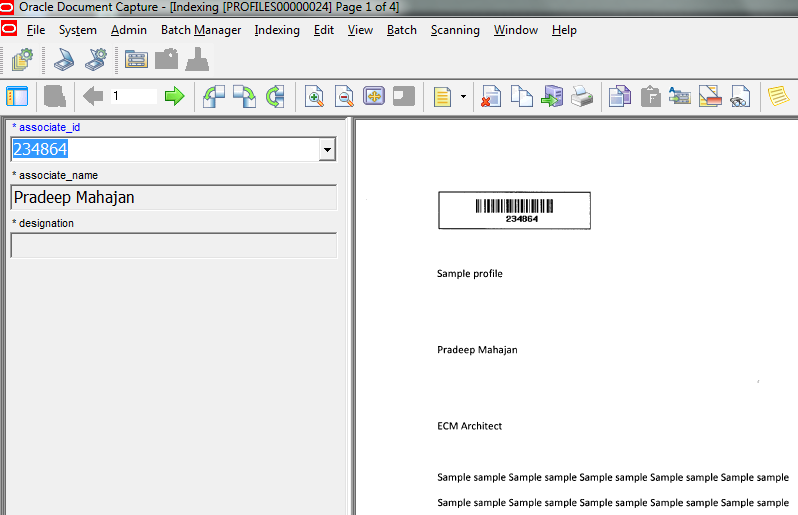
That’s it actually, once all the pages in the batch have the metadata values, the batch is ready to be “Commit”ted.
If you want to have multiple contents to be checked in the batch, its very simple, just differ the metadata values from the page that you want as a separate content. ODC’s logic is very simple, all pages having similar metadata, goes in as one content. As simple as that.
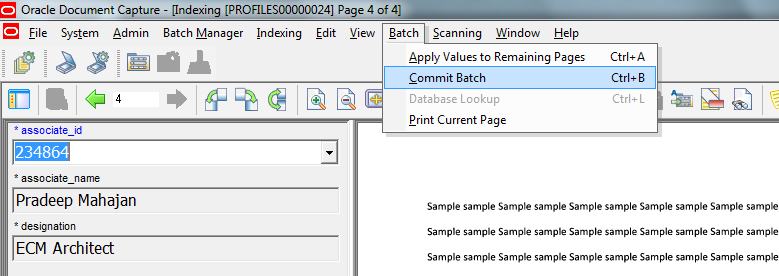
Once committed, Visit UCM UI to confirm whether your contents have arrived or not, and whether the metadata is correct or not.
More use cases later.
 UCM Chronicles
You must be logged in to post a comment.